
Download the information below in PDF format to circulate among your org members by clicking the button below.
Bright Breaks Members – Step Tracking FAQ #
Updated April 2, 2026
Connecting and Syncing Your Step Tracker #
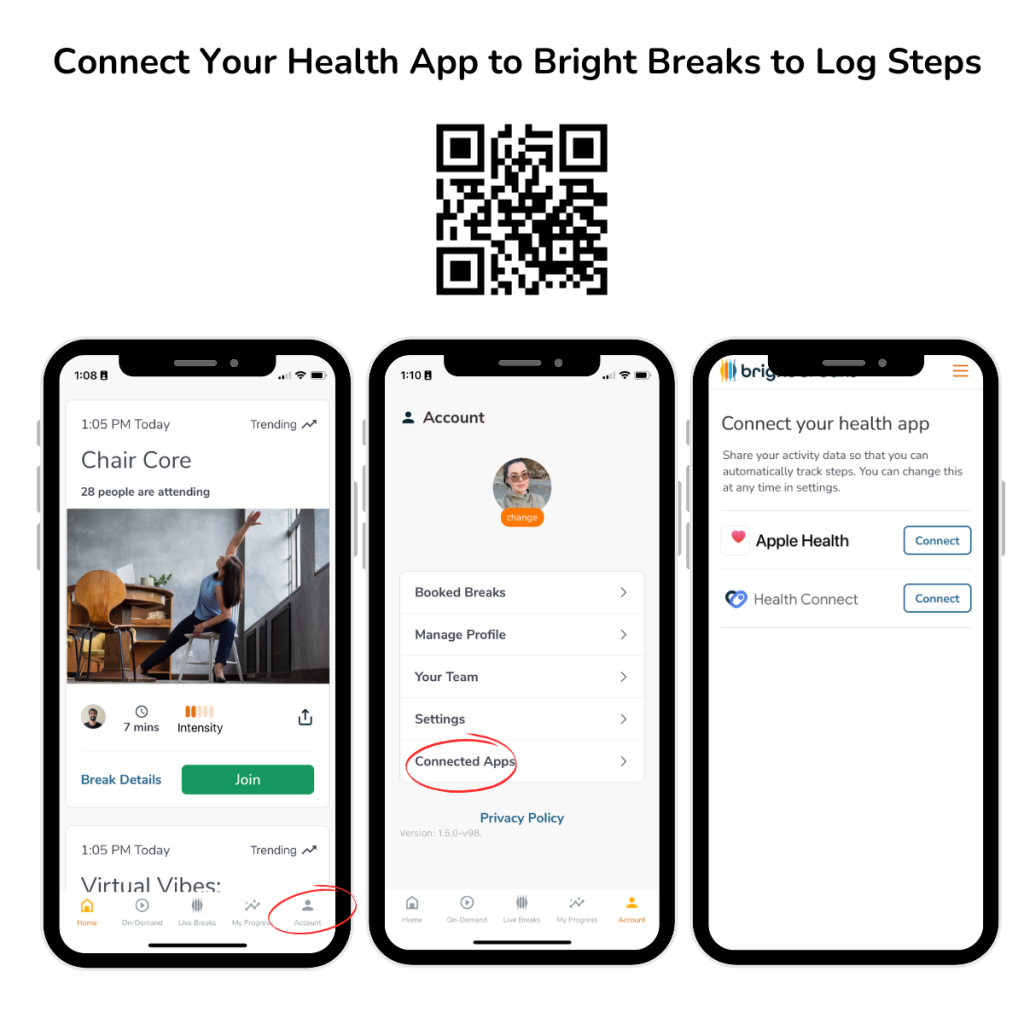
How do I connect my step tracker?
- Download the Bright Breaks iOS or Android app and sign in or create your account.
- On the bottom left corner, tap Account > Connected Apps
- Connect Apple Health or Health Connect
- Go through the remaining steps as presented to finish the connection.
- You’ll be able to see your step count increase on the leaderboard
My steps aren’t syncing from my wearable, how do I fix this?
Bright Breaks uses Apple Health or Health Connect as the data source. If you notice your steps aren’t syncing between a wearable and the leaderboard, then the wearable isn’t syncing properly or in a timely manner with Apple Health or Health Connect.
After connecting your wearable to Apple Health or Health Connect, try these solutions to optimize step syncing for Bright Breaks step challenges:
Apple Health
Apple devices are prioritized to sync data by default, unless changed by taking the steps below.
- Click the four square icon ‘Browse’ (bottom left corner)
- Tap Activity > Steps, then scroll to the bottom and tap Data Sources & Access
- Ensure that Bright Breaks is allowed to read data
- Scroll down to Data Sources and re-arrange your wearable to be the top of the list of devices
Health Connect
Disable write access for step data except your wearable.
- Open Health Connect
- Tap on ‘Permissions and Data’ > ‘App Permissions’
- From the list of data types, select ‘Steps’
- From the list of data types that can write Steps data, disable all but your wearable device
Depending on your wearable, there may need to be additional steps taken. Searching ‘how to prioritize <your wearable> step syncing with Apple Health/Health Connect” in a search engine is a good place to start for more specific advice.
I connected my step tracker but now I don’t want my steps to appear on the leaderboard, what do I do?
Click the ‘Opt-out of leaderboard’ link at the top of the leaderboard. You can opt back in anytime!
Additional Support #
I still need help—what do I do?
We’re here for you. Reach out to .


